Download PDF

Instructional Guide: Unit Leader Registration and User Access Request in the ESTS REDCap Database
Introduction & Overview
This instructional guide explains how Local Unit Leaders register their institution and request database access for users in the ESTS REDCap platform.
The registration process includes two forms:
- Unit Leader Registration Form
- User Registration Form
The registration link provided to you by email will take you directly to the Unit Leader Registration Form, which must be completed first. After completing this form, the User Registration Form can be used to add users from your institution.
Before Starting
To avoid login conflicts:
Open the registration link using an Incognito / Private browser window.
Then open the registration link provided to you by email .
Unit Leader Registration Form
The first form to complete is the Unit Leader Registration Form. This form is used to:
- Identify the Local Unit Leader
- Register the institution
- Define the data contribution model
- Confirm GDPR consent
This step must be completed before users can be registered
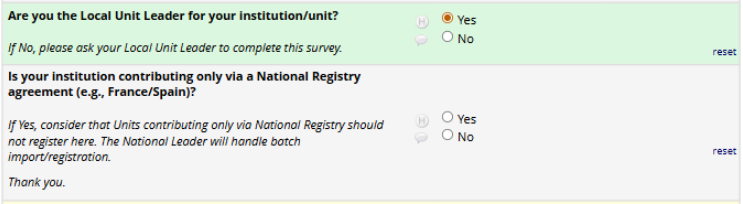
At the beginning of the form, confirm the following:
Are you the Local Unit Leader for your institution?
Select Yes to continue.
You will also be asked whether the institution contributes only through a National Registry agreement.
If Yes, the institution should not complete this form, as participation will be managed by the National Leader.
Filling in Leader Information and Signature
Enter the Unit Leader details:
-
First name
- Surname
- Email address
- ESTS Membership ID
- Confirm that you are an ESTS member in good standing
-
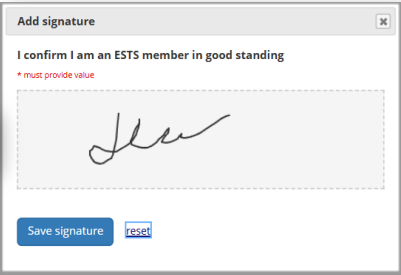
To confirm the declaration:
- Click Add signature
- Draw your signature using a mouse or trackpad
- Click save signature

Institution Information and Contribution Model
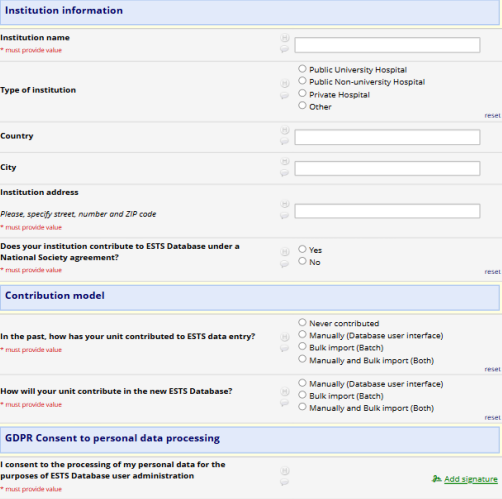
- Fill in the institution Information
- Select the contribution model for your unit
- Confirm GDPR consent for personal data processing by Adding signature
Completing the Unit Leader Form
After completing all required fields:
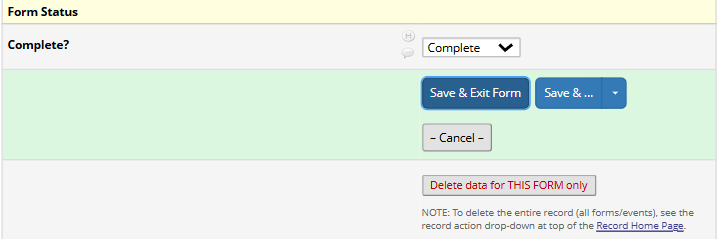
Set Form Status → Complete
Then click
Save & Exit Form
The Unit Leader Registration Form is now completed.
User Registration Form
After completing the Unit Leader Registration Form, the Unit Leader can add users from their institution.
To open the User Registration Form:
- Navigate to the Record Home Page
- Before starting data entry, it is important to understand how this REDCap database is organized.
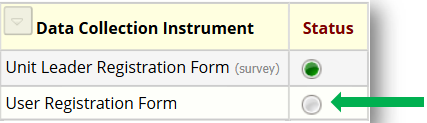
This will open the form where you can enter the details for each new user.
* Each user must be registered individually.
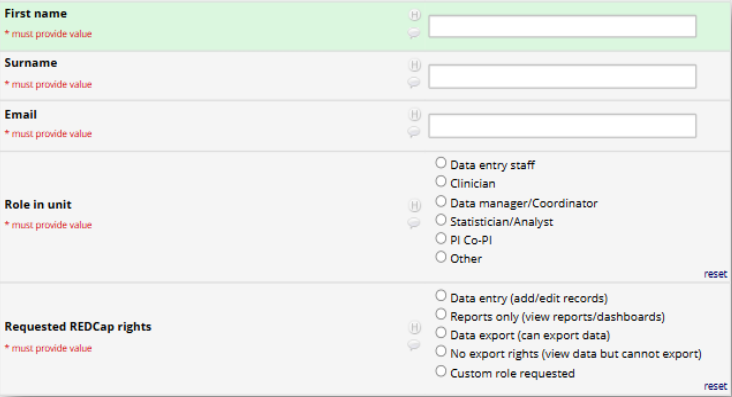
For each user provide:
- First name
- surname
- Email address
User Role and Requested Permissions
- Select the user’s role from given options, if not listed - choose other
- Then select the requested REDCap access level (if other than provided options - choose Custom role requested)
Saving the User and Adding Addittional Users
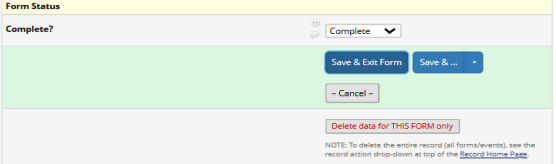
After completing all required fields:
- Set Form Status → Complete
- Click Save & Exit Form
The form will be saved and you wil return to the Record Home Page.
Adding Additional Users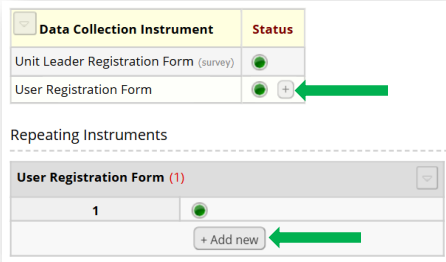
The User Registration Form is a repeating instrument.
To add another user:
- Click Add new under User Registration Form
- Complete the form
- Set Form Status → Complete and Save & Exit Form
Repeat this process to register additional users.
Troubleshooting – Registration and User Access
If you encounter issues during Unit Leader or User Registration, check the following common issues and solutions:
Form cannot be saved
- Ensure all required fields (*) are completed
- Set Form Status → Complete before saving
Cannot add another user
- The User Registration Form is a repeating instrument
- Click Add new to register an additional user
Signature field not working
- Click Add signature and sign using your mouse or trackpad
- If the window does not open, refresh the page and try again
Access or loading issues
- Open the registration link using an Incognito / Private browser window
NeedHelp? Contact the UBEP REDCapTeam
If you experience any issues with Unit Leader registration or user access requests, please contact the UBEP REDCap Team at ests.data@ubep.unipd.it
When contacting us, please include:
- Your full name
- Your institution
- A brief description of the issue
- A screenshot (if available) This will help us resolve your request more quickly
Thank you for your time and cooperation! We wish you a smooth and successful experience using the REDCap platform
Next →