Download PDF

Instructional Guide: REDCap First Access Troubleshooting Guide - Common Issues and How to Resolve Them
Introduction
This instructional guide explains the most common issues that may occur during your first access to the REDCap platform and provides clear instructions on how to resolve them. Please follow each recommendation carefully to ensure a smooth and secure login experience.
Issue 1: No invitation email / Unable to log in
Description: REDCap access is invitation-based and requires the use of the email address and credentials provided in the official invitation email. If you attempt to log in using your own email address instead of the one provided, you may be redirected to a passkey or security key screen.
Reason: Access must be activated through the official invitation link and associated account.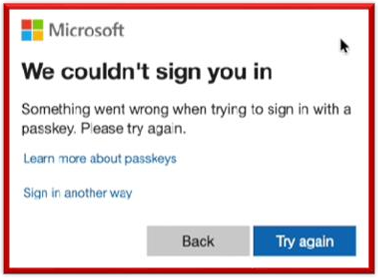
Solution:
- Use only the link and credentials provided in the official REDCap invitation email
- Do not use personal or alternative email addresses
- If you have not received the email:
- Check your spam folder
- Contact the support team
Issue 2: Link opened in normal mode instead of Incognito
Description:
Opening the REDCap link in a normal browser window may result in:
- Automatic login with a different account
- Redirection errors
- Access issues
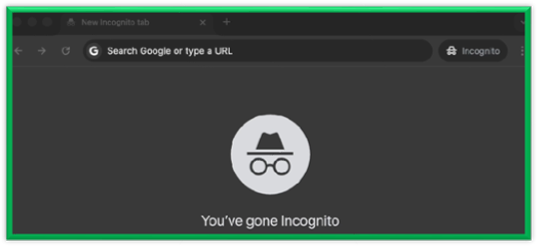
Reason: Stored cookies and active sessions from previous logins may interfere with authentication.
Solution:
- Always open the REDCap link in: Incognito (Chrome), Private window (Safari/Firefox)
- This ensures a clean session without saved data
Issue 3: QR code cannot be scanned
Description: The QR code cannot be scanned in Microsoft Authenticator.
Reason: Camera permissions are not enabled for the application.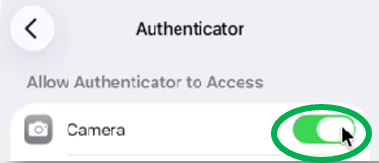
Solution:
- iPhone: Settings → Apps →Microsoft Authenticator → Camera → Allow
- Android: Settings → Apps → Microsoft Authenticator → Permissions → Camera → Allow Then reopen the app and scan the QR code again
Issue 4: Code not accepted / Verification fails
Description: The verification code from Microsoft Authenticator is not accepted.
Reason: The phone’s time is not synchronized correctly. Authenticator codes are time-based and refresh every few seconds.
Solution:
iPhone: Settings → General → Date & Time → Set Automatically
Android: Settings → System → Date & Time → Automatic date & time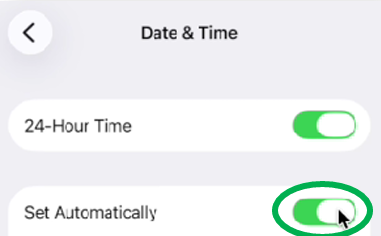
Then:
- Return to the app
- Enter the latest code
Issue 5: Page does not open
Description: The REDCap page does not open and displays a message related to browser cache or session issues.
Reason: REDCap requires proper session data stored in the browser.
Solution:
1. Close the current browser window
2. Clear browser cache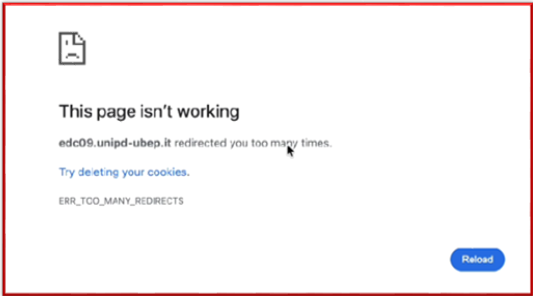
In Google Chrome:
- Click three dots (top right)
- Go to Settings → Privacy and Security → Clear browsing data
- Select:
- Cached images and files
- Time range: All time
- Click Clear data
Note: Steps may slightly differ depending on the browser.
3. Reopen the link and try again
Issue 6: Wrong Email Entered
Problem
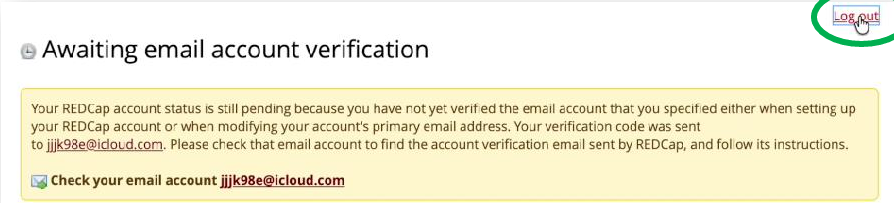
- If you enter an incorrect email, the verification message is sent to that address
- You will not be able to continue without accessing it
Solution
- Click Log out and close the current tab
- Open a new Incognito / Private window
- Use the original invitation link
- Enter your correct and accessible email address
If the issue persists
- Clear your browser cookies and cache
- Try again or contact REDCap support
Issue 7: Multiple confirmation emails received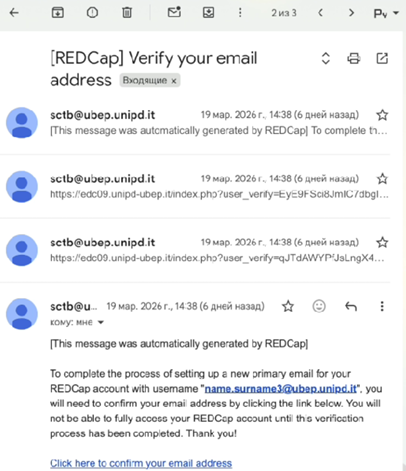
Description: You receive more than one REDCap confirmation email.
Reason: The invitation or verification process was triggered multiple times.
Solution:
- Open the links one by one
- Use the one that works correctly
- Ignore the others after successful access
Need Help? Contact the UBEP REDCap Team
We hope this guide has helped you resolve the most common issues during your first access to REDCap.
If you encounter any difficulties or require further assistance, please contact our support team: ests.data@ubep.unipd.it
We will be happy to support you.
Thank you for your time and cooperation!
We wish you a smooth and successful experience using the REDCap platform.